Well, you know November has come
When it's gone away
- Gorillaz, November has come
Sorry for the silence, november came and with it, all the slowness of winter, which, this year, got the form of a quite strong covid. The good thing is that it’s now away, and i’m back up and running, and it’s the perfect moment to announce one of the great wins for paged.js rebuilding session we’re hard working for.
The benefits of a cssPrint preview
As far as i remember, i always used the browser to generate books using CSSPrint. I never got the hard experience of generating a PDF through the command line, to check the result and tweak the content, to do it again, and again.
I got the luxury of getting into cssPrint using book.js, a project founded by Adam Hyde (like paged.js) that was using CSS Regions to generate page. You made a change on page 2, and all the book was rebuilding from there. And we could quickly try things using the inspector and everything was visible on screen. But CSS Regions were drop by the Chromium team and what was amazing just disappeared. So we didn’t update Chrome for quite a while. And WebKit followed, and everything about CSS regions disappeared.
I ended up using a very precise Chromium under a very special Ubuntu version under a virtual machine for a long time (and we didn’t have SSD then, everything was so long). And i wasn’t the only one strugglin, even the folks at Open Source Publishing ended up making their own fork on webkit to support their design work. We, designers, love to experiment with our tools, and the browser is one of the most accessible setup for that. We need to make a poster? We’re gonna build our own system for previewing on screen what our HTML and CSS will render. And to do so, we spend quite a long time to figure out the HTML and CSS that will allows us to see what we’re gonna print.
But most of the time, this html and this css is litterally a simplest version of what paged.js generate to look at it on a screen. We have a <div> that will be the page, and that will have a CSS to handle the preview of the screen: setting the size of the <div> to be equal to what you’ll set in the @page, make sure to set the overflow accordingly, and, if you really want to reuse the system, you’re setting up a precise CSS grid, with margins, space for running head, etc.
And by the game of copy/pasting, we’re rebuilding the same thing every time we need, and it’s not fun, because we always forget a line, or get into a new bug, because copy and pasting is far from free of errors.
That’s why, when we decided to update paged.js, we decided that any bit of the library that could be reused outside will be made available as such. Today, we’re releasing the first block of this, the <paged-page> component.
But hey, what is a web-component?
HTML is made of standard tags that we all share from one web page to another. <h1> is a level one title, <p> is a paragraph and <figure> an element that will be understood by readers and computers, as a figure. Those tags come with attributes (like id or class for the most well known ones), and a behavior that has been defined by the W3C, and implemented in a similar way in all the browsers. A good example? an <img> tag has a alt attribute. This attribute give an opportunity to the author to add a description of the image that will be picked up by a screen reader and read aloud to, for example, a person with visibility issues. This behavior is described in the specs, and give some rules on how an element will work.
A web-component is a set of techonologies allowing author to write their own component.
Using javascript, a web-component will include the HTML structure (the template), the CSS (the default styles), and their own behavior (how the element will react to a user). And to use it, you’ll only need the javascript file that define all those, and then you can simply add the component where you need in your webpage.
One of my favorite web-component is a preview of a keybaord called x-keyboard (and its source). It’s the perfect tool to show a keybaord layout on the screen, and it will even be able to pick up what the visitor will type to and react accordingly.
So paged-page is a web-component to show the preview of a printed page on the screen, following the W3C instructions used for printing.
You want to print a page with a huge text in the middle of your page?
This is the HTML you’ll write:
<paged-page><h1>The store will be closed for Christmas. See you in January!</h1></paged-page>All the CSS for the preview, and for the print, comes with the component. This is already a win.
And we’ve been a bit further, and added attributes to handle all the needed CSS directly from the HTML element: bleed, marks, margin, width and height are added as attributes and transfered to the CSS and the HTML.
A good thing with a web-component, is that it can be transformed with CSS quite easily: you only need to do what you would do with a classic HTML tag, like this:
paged-page#id {
    padding: 3em;
    background: green;
}
…and you’re done, your page has now a padding of 3mm and a green background.
Pretty easy, right? I hope you’re gonna enjoy this, we’re really excited with the possibility this will offer.
Cascading pages or how I learned to style the content inside the page
Conceptually, in the word of web to print, the sheet of paper doesn’t impact the layout of its content (outside of what the @page can do): in short, you can’t define how the content of the page look depending on the type of page it’s on.
A simple example: let say that your design needs to have the text on the thirteenth page in another color and you don’t know before hand what would be on this page, you would asssume that you could use the following code:css
@page:nth(13) {
  .funny-text {
    color: green;
  }
}
Well, you can’t. Because the specs does not allow anything not page related on the @page. You can have margins, bleeds, marks and set the geometry of the page with the size property, but that’s it.
Because this would create a cascade issue: what if somewhere else in your CSS, you write this
.funny-text {color:yellow}`What color would be your text?
And then, think of all the weird thing you could do with text-size: if the text needs to be huge on page 10, but making it huge push it to page 11, what should you have on the page 10 then?
Well, paged.js has a weird answer to that issue, because of the transformation it makes on the css stylesheet. You see, any @page:nth(13) selector is transformed into a class: @page become div.paged_page.paged_nth_13 which totally accepts nested CSS, and therefore, will have no trouble with styles for the children of that page, and the specificity rules will be quite clear.
I’m calling this the quantum cascade: it is and it is not, until it’s appearing on the page you’ll print in the end.
But it’s a bit of a lucky game, because sometimes, you don’t want that to happen, and your stuck with this not-a-bug-a-feature that paged.js offers. Thankfully, in the world of web component, it’s a bit different. Picture this HTML
    <paged-page
      id="page-12"
      name="id-of-the-page2"
      width="100mm"
      height="100mm"
      bleed="5mm"
      margin="8mm 14mm"
      marks="cross crop"
    >
      <h2>This is a regularly sized page.</h2>
      <p> there will be some content here.</p>
    </paged-page>
If I want to change the color of the text, and add this CSS:
  #page-12 {
    background: green;
      h2 {
          color: blue;
      }
  }
As you can see the component is almost invisible, and you can easily change the content following the classic cascade.
But maybe i want to change the style of the page-area, then we need to make the component visible. That’s what the ::part pseudo elements is for.
#page-12::part(page-area) {
        background: yellow;
}
This could seem not that useful, because right now, we’re only talking about paged-area, but as soon as you get margins in, it becomes extremely powerful because you can target very deep css with a simple shortcut:
#page-12:part(bottom-center) { text-transformation: uppercase; font-size: .8em}
#page-12:part(bottom-right)::after {content: counter(page)}
A recap
<paged-page> is a component that is waiting for those attributes:
width: the width of the page (without bleed)height: the height of the page (without bleed)bleed: the amount of bleed. (right now, you can’t have custom bleeds per side, but we’re thinking about it)margin: the margins of the page, written down exactly as their css counterpart.marks: the crop marks and cross marks you can add to the page
And since it’s HTML, you can add any property you’d need for your own code. For example, paged.js will add data-paged-ref to support the page break system.
The component itself is made of three elements:
- the page-marks: for bleed and marks.
- the paged-margins: allowing for quick access to margin-boxes using the
paged-marginswebcomponent. - the page-area: where the content of the component will appear.
If you happen to have multiple page with multiple page size, save as PDF will create a PDF with different page size.
About margins
Since we were quite happy with the paged-margins, we got into exploring margin-boxes as web-components. As you may know, in the land of CSSPrint, the page has a limited of places where you can add things in the margins. THe specifications say that there are 17 margin-boxes, following this diagram:
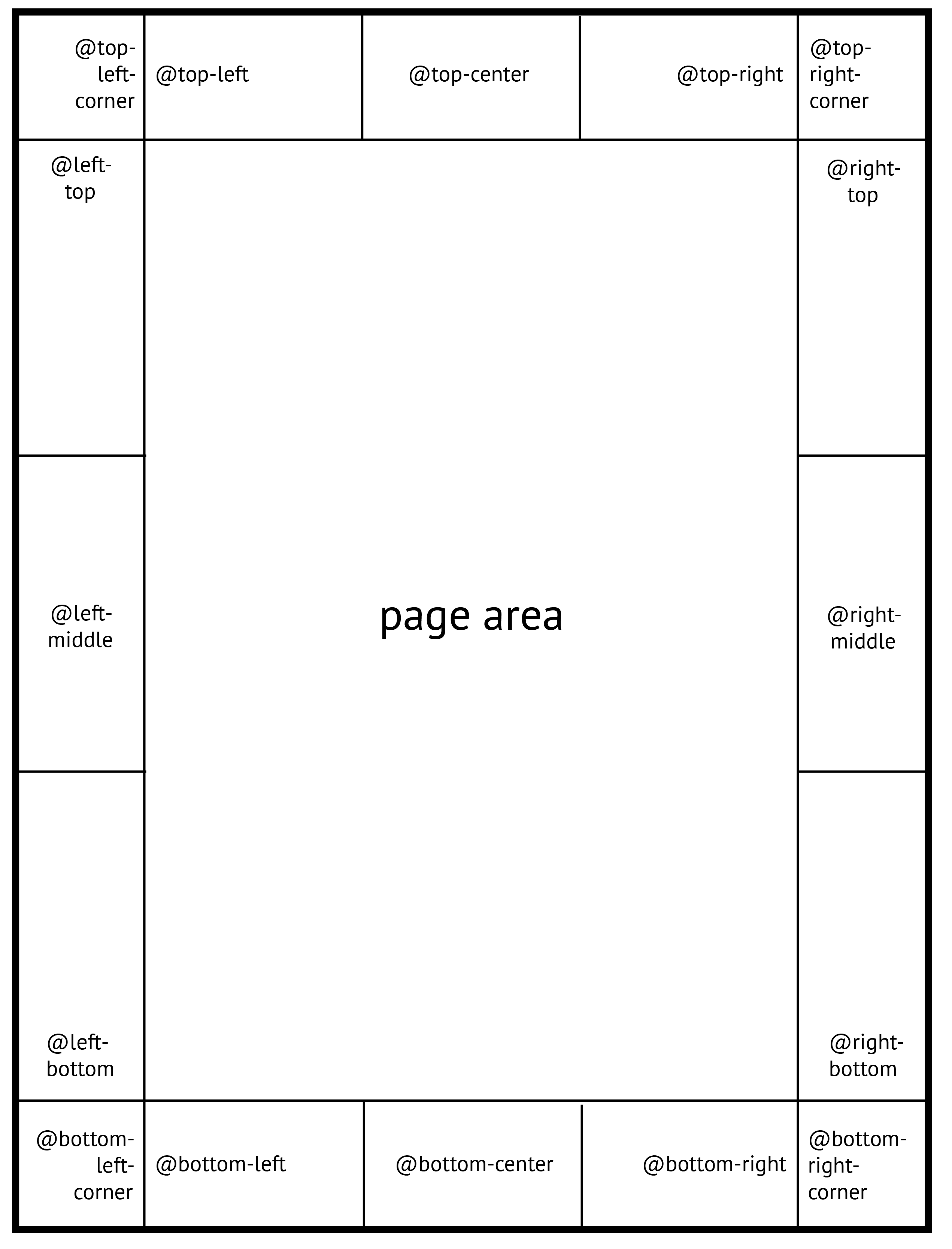
As you can see, the place you can add content is quite limited, and the geometry will be dependant on what you’ll have in there. It’s one of the thing we never make when we do HTML+CSS for printing, without using pagedjs or other things. We just don’t bother adding them, and we end up adding some content with a position absolute on each page, because more is too much.
But if the preview of your page can have those margins, you may consider using them, and if they are needed for paged.js we added them, and it’s pretty easy to bring them up:
<paged-page>
    <paged-margins slot="page-margins">
        <paged-margin-content slot="top-left">Does this appear?</paged-margin-content>
        <paged-margin-content slot="top-right">Should have</paged-margin-content>
        <paged-margin-content slot="left-top">T</paged-margin-content>
    </paged-margins>

    <h2>there are margin everywhere !</h2>
</paged-page>
In that HTML, we have a page, that contains the margins, and the rest of the content will fill up the page-area.
We hope you gonna love playing with it, we’re already pretty much excited to put that into paged.js!
wanna test it quickly? Include that script to your HTML and start making things!
<script
      type="module"
      src="https://unpkg.com/@pagedjs/paged-page@0.1.0/dist/PagedPreview.js"></script>
On a side note, we got an issue for some translation of the documentation, and spanish may be the next language for paged.js documentation!
¡Vale!